Best Way to Compress Images for WordPress
WordPress sites are notoriously slowed down by heavy uploads. Learn how to optimize catalog images before uploading to WordPress and avoid bloated plugins.
WordPress is the most popular content management system on the web, powering over 43% of all websites. However, WordPress sites are notoriously prone to speed issues, and unoptimized image uploads are almost always the primary cause of slow load times.
Why WordPress Image Bloat Happens
By default, when you upload a single image to the WordPress Media Library, the core system automatically generates multiple cropped versions (Thumbnail, Medium, Large, Medium Large, etc.) to fit various layouts and theme configurations.
This means that if you upload a single raw 3 MB photo from a digital camera, WordPress creates 5 to 10 additional crops. If the original image is unoptimized, every generated crop will also inherit that bloat, multiplying the page load impact and consuming massive disk space on your hosting server.
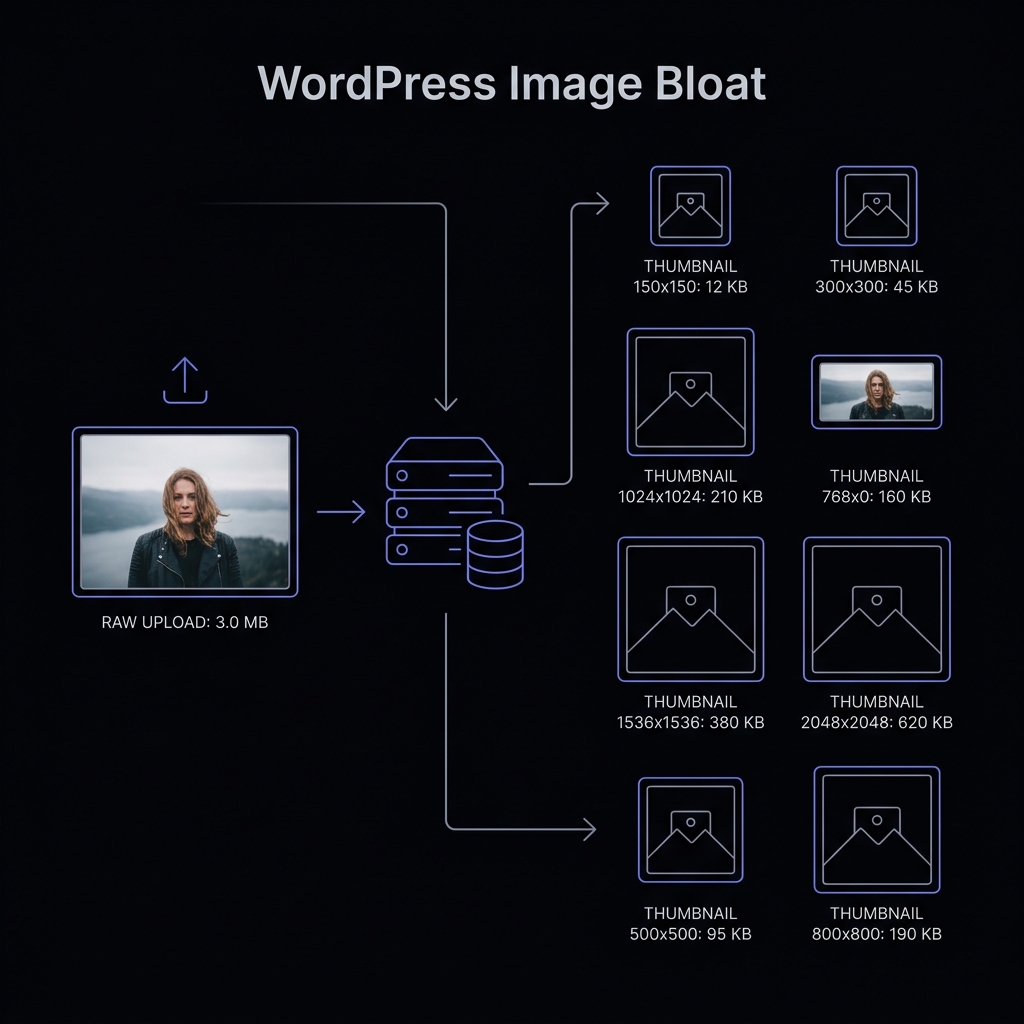 Figure 1: How standard WordPress uploads multiply storage usage compared to client-side optimized WebP.
Analyzing WordPress Plugins vs. Client-Side Pre-Compression
Many developers rely on WordPress plugins (like Smush, ShortPixel, EWWW Image Optimizer, or Imagify) to compress images on upload:
- Plugin Compression: While convenient, these plugins run on your web server, consuming valuable PHP execution limits and memory during uploads. This frequently causes server lags, product import timeouts (on WooCommerce), and slows down admin dashboards. Additionally, most of these plugins require monthly subscriptions to unlock advanced next-gen WebP/AVIF formats or bypass file size limits.
- Client-Side Pre-Compression (Recommended): Compressing your images before uploading them to WordPress is highly efficient. By using local browser-based utilities like CompressNeo, you compress your assets for free, keep files completely private, choose next-gen WebP or AVIF output formats, and pre-shrink images so the server doesn’t waste resources generating bloated crops.
WordPress Image Compressor
Pre-configured to compress and output WebP files under 100KB limits.
Enforcing Dimensions: Preventing WordPress from Generating Dozens of Crops
To prevent WordPress from generating unnecessary crop sizes that fill up your storage:
- Navigate to Settings > Media in your WordPress dashboard.
- Set the Width and Height of sizes you do not use (e.g. Medium or Large) to
0. This tells WordPress to disable those crops. - Use a child theme configuration or simple plugin (like Stop Generating Unnecessary Thumbnails) to limit automatic crops strictly to the sizes needed by your active theme.
Configuring WebP Uploads on Modern WordPress Installations
WordPress core has supported the WebP format by default since version 5.8, meaning you can upload WebP files directly into the media library with no plugins required.
To take advantage of this, set your pre-compression tool (such as CompressNeo) to output WebP files, compress your assets under 100 KB, and drop them directly into your media library. They will load instantly for visitors and pass Core Web Vitals checks.
Best Practices for WooCommerce Product Listings
For e-commerce stores running WooCommerce, speed directly impacts conversion rates and SEO rankings:
- Consistent Dimensions: Resize all product showcase photos to a uniform square (e.g. 1000px by 1000px) before uploading them to prevent page layout shifting (CLS).
- Compression Budget: Target a file size under 50 KB for main product listings and under 20 KB for thumbnails.
- Use SVG for Logos: Upload shop logos and payment icons in SVG format to maintain razor-sharp layouts across high-density mobile screens while keeping page size minimal.